
How to Sign and Date a PDF Without Printing
Add a handwritten or typed signature, place the date and initials, and check the signed PDF before sending it. Follow the steps in PdfWord.
If you receive a PDF with a signature line and a date field, you can complete both in your browser. Sign a PDF online for free with PdfWord, then download a signed copy to send back. If the recipient specifies a certificate-based signature or a particular signing service, follow their instructions.
Create and place the signature
- Open your file in Sign PDF or open it in the editor and switch to Fill & Sign.
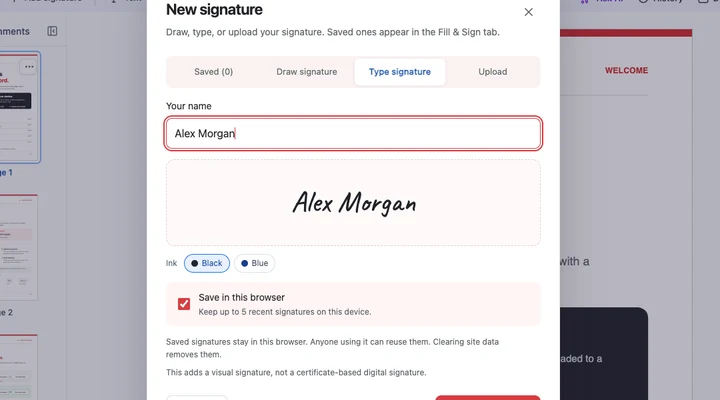
- Choose Add signature or New signature. Pick Draw, Type or Upload. For an upload, a transparent PNG keeps the text or lines behind the signature visible.
- Choose Place signature, or Save and place if you want to reuse it. Click the signature line on the page.
- Select the signature to move it or drag a corner handle to resize it. Use Date, Text, Tick or Cross to finish the remaining blanks.
- Choose Download PDF and reopen the downloaded copy to check the signature and date.
Check the signed copy before sending
Open the downloaded file and zoom in on the signature line. Check that the signature, date, and initials sit within their boxes. If the form includes interactive fields, check those answers too. You can fill PDF form fields in the same editor before you sign.
Reuse or remove a saved signature
With Save in this browser selected, PdfWord keeps up to five recent signatures in this browser profile. Choose a saved thumbnail from the Fill & Sign toolbar to place it again. To remove a saved signature, open File → Signatures, select the Saved tab and use the trash button beside it. On a shared computer, clear the save checkbox before placing your signature.